


Introduction
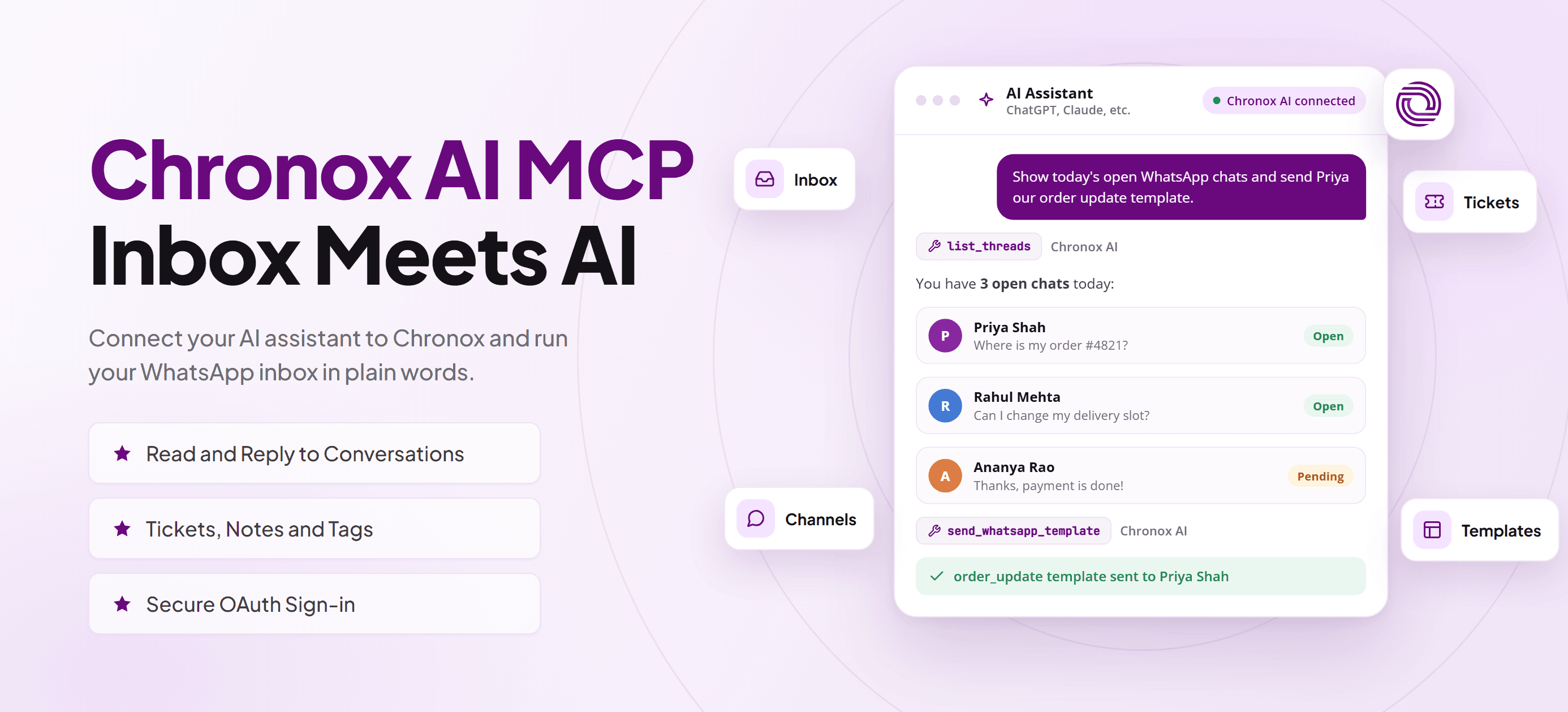
Most support and sales teams now work in two places at once: the inbox, where customer conversations happen, and an AI assistant, where they draft replies, summarize chats and plan the next step.
Moving between the two usually means copying messages, pasting context and switching tabs all day. The assistant is smart, but it cannot see your conversations, and it cannot act on them.
Chronox AI MCP closes that gap. It connects your AI assistant directly to your Chronox AI workspace, so you can ask it to find conversations, reply to customers, add notes, update tickets or check a WhatsApp template, all in plain words.
What Is Chronox AI MCP?
MCP (Model Context Protocol) is an open standard that lets AI assistants use tools from other apps in a safe, structured way. An app publishes an MCP server, and any assistant that supports MCP can connect to it.
Chronox AI MCP is the MCP server for Chronox AI. It runs in the cloud at mcp.chronox.ai and gives your assistant a set of tools that work on your organization's data. With it, your assistant can:
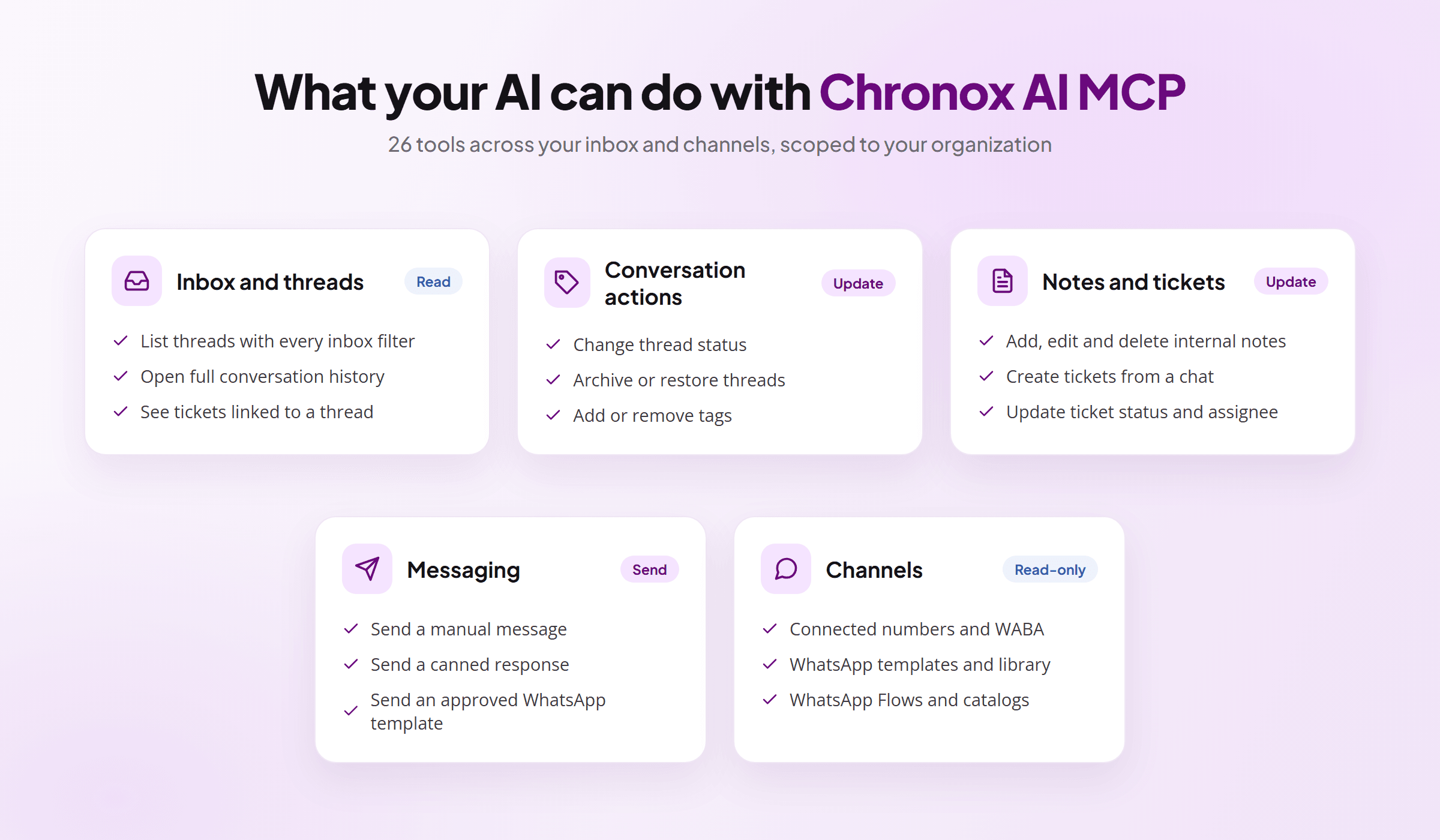
- read and filter inbox conversations,
- reply with manual messages, canned responses and approved WhatsApp templates,
- manage thread status, tags, internal notes and tickets,
- and look up channels, WhatsApp numbers, templates and Flows in read-only mode.
Every action goes through the Chronox Public API, so the assistant can only do what your organization's Public API key allows.
Chronox AI MCP is a hosted server. You add one URL to your AI assistant and sign in once. There are no downloads, config files or local servers to run.
What Your AI Assistant Can Do With Chronox AI MCP
Chronox AI MCP brings 26 tools into your assistant, grouped around the work your team already does in the inbox every day.
Chronox AI MCP features
Built for real inbox work
Before it acts, the assistant looks up your organization's own reference data: statuses, tags, team members, ticket fields and channels. That way it uses the exact names and IDs from your workspace instead of guessing.
Channel tools are intentionally read-only. Your assistant can check which templates are approved or which numbers are connected, but it cannot change channel settings, templates or Flows.
How to Connect Chronox AI MCP
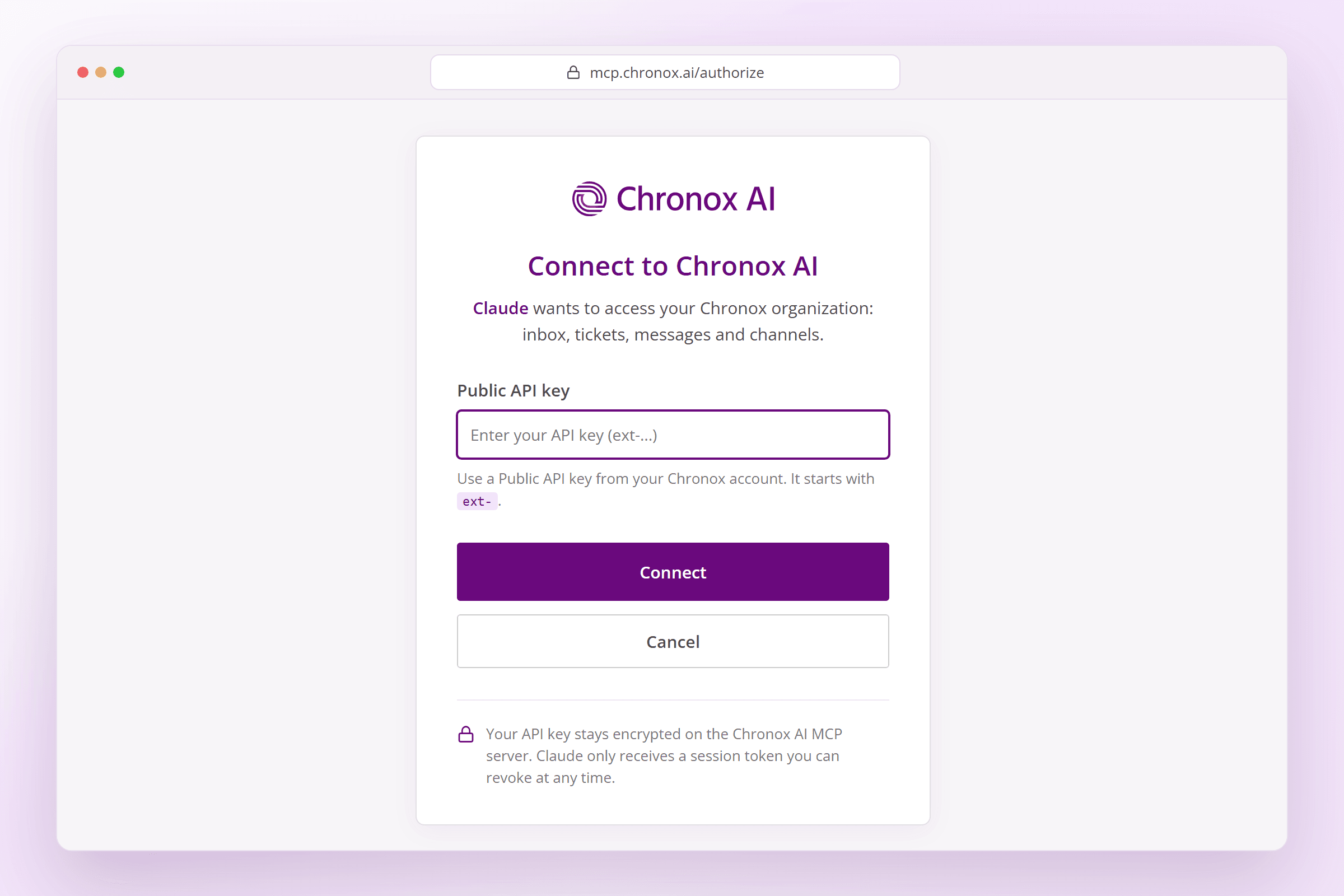
Chronox AI MCP uses OAuth sign-in. You never paste your API key into your AI app or a config file. Instead, your AI app opens a secure Chronox page, you sign in once, and the app receives a session token it can use on your behalf.
Before you start
- A Chronox AI account with access to the Public API.
- A Chronox Public API key. It starts with
ext-. - An AI assistant that supports remote MCP servers with OAuth, such as Claude.
Connect Chronox AI MCP to Claude
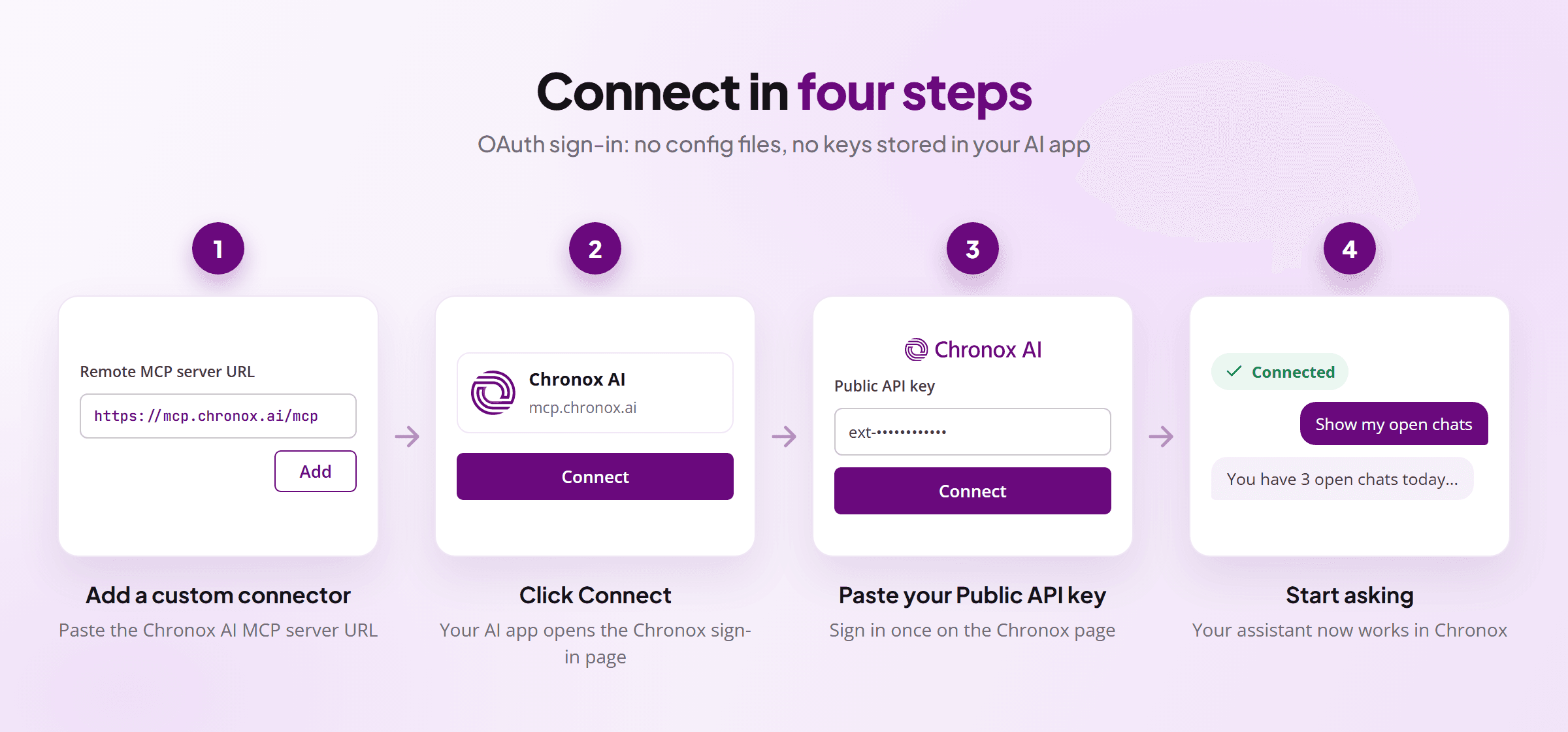
- Open Connectors
In Claude, go to Settings and open Connectors.
- Add a custom connector
Click Add custom connector. Enter Chronox AI as the name and paste the server URL https://mcp.chronox.ai/mcp, then click Add.
- Click Connect
Find Chronox AI in your connector list and click Connect. A new window opens on mcp.chronox.ai with the Connect to Chronox AI page.
- Paste your Public API key
Paste your Chronox Public API key into the field and click Connect. The key is checked and stored encrypted on the Chronox AI MCP server.
- Start asking
You are sent back to Claude and the connector shows as connected. Open a new chat, make sure Chronox AI is turned on in the tools menu, and ask your first question.
Using another AI app?
Any MCP client that supports remote servers with OAuth connects the same way: add https://mcp.chronox.ai/mcp as a remote (HTTP) MCP server, and complete the Chronox sign-in page when the app asks you to.
For example, in Claude Code run claude mcp add --transport http chronox https://mcp.chronox.ai/mcp, then type /mcp, choose chronox and select Authenticate. Your browser opens the same Chronox sign-in page.
Only enter your Public API key on the Chronox sign-in page at mcp.chronox.ai. Never paste it into a chat message or share it with anyone.
How Chronox AI MCP Keeps Your Data Secure
Giving an AI assistant access to customer conversations is a big step, so Chronox AI MCP is built with security in every layer.
| Area | How Chronox AI MCP handles it |
|---|---|
| Sign-in | OAuth 2.1 with PKCE. You sign in on a Chronox page, not inside the AI app. |
| Your API key | Stored encrypted on the Chronox AI MCP server. The AI app never sees it. |
| Session tokens | Access tokens expire after 1 hour. Refresh tokens rotate on every use and expire after 30 days. |
| Data access | Every tool works only on your own organization's data. |
| Sending messages | Sends are rate limited per organization to prevent runaway messaging. |
| Activity log | Every tool call is logged for your organization and deleted automatically after 30 days. |
| Disconnecting | Remove the connector in your AI app, or delete the Public API key in Chronox, to cut off access. |
Example Prompts to Try
Once Chronox AI MCP is connected, talk to your assistant the way you would brief a teammate:
- "Show me all open WhatsApp conversations assigned to me today."
- "Summarize my last conversation with Priya Shah and tell me what she is waiting for."
- "Reply to Rahul: your delivery slot is moved to tomorrow, 10 AM to 1 PM."
- "Send the order_update template to Priya with order number 4821."
- "Add a note to this thread: customer asked for a refund, follow up on Friday."
- "Create a ticket for this chat and assign it to Aditi."
- "Which of our WhatsApp templates are approved for marketing?"
Want to review messages first? Ask the assistant to show you the draft and wait for your OK before it sends anything to a customer.
Conclusion
Chronox AI MCP turns your AI assistant into a real member of your inbox team. It can find the right conversation, understand the context, reply on WhatsApp, and keep notes, tags and tickets up to date, all from a single chat.
Setup takes a few minutes, needs no installs, and your API key never leaves the Chronox server. Add the connector, sign in once, and start running your inbox in plain words.
FAQs
Q1. What is Chronox AI MCP?
Chronox AI MCP is a hosted MCP server that connects AI assistants such as Claude to your Chronox AI workspace, so they can read and act on your inbox, tickets and WhatsApp channels.
Q2. Which AI assistants work with Chronox AI MCP?
Any AI app that supports remote MCP servers with OAuth sign-in, including Claude and Claude Code.
Q3. Do I have to share my API key with my AI app?
No. You enter your Public API key only on the Chronox sign-in page. It is stored encrypted on the Chronox AI MCP server, and your AI app only receives a session token.
Q4. Can the assistant send WhatsApp messages to customers?
Yes. It can send manual messages, canned responses and approved WhatsApp templates. Normal WhatsApp rules still apply, so outside the 24-hour customer service window you need an approved template.
Q5. Can the assistant change my channels or templates?
No. Channel tools are read-only. The assistant can view numbers, WhatsApp Business Accounts, templates and Flows, but it cannot edit them.
Q6. How do I disconnect Chronox AI MCP?
Remove the Chronox AI connector from your AI app. To cut off access completely, delete the Public API key you used in Chronox.
Q7. Does Chronox keep a record of what the assistant does?
Yes. Every tool call is logged for your organization for auditing and is deleted automatically after 30 days.


